Review and manage Defender configurations
Microsoft Defender Antivirus is a complex anti-malware security software that protects your managed Windows devices. You can view the details of the MS Defender configuration on each managed device.

To review and manage Defender configuration on a managed device:
- Select the Devices tab in top navigation.
- Select a device from the list.
- In the right panel, go to the Security tab.
- On the Security tab, in the Antivirus view, click Details.
The Defender view appears.
The view displays the following information:
Device Status Indicates if any of the following Defender features are enabled on the selected device:
- Anti-Malware Service
- Network Protection
- Real-Time Protection
- Tamper Protection
Scan Indicates the times and dates of the most recent quick and full scans, and the associated versions of the anti-malware definition file, if applicable. Signatures Indicates if the anti-malware definition file is up to date and displays its version number. EDR Displays the endpoint detection and response (EDR) information, if the managed device is enrolled in to Microsoft Defender for Endpoint. This section shows whether the device is onboarded to this service, the associated organization ID (tenant name), whether the behavior sensor is turned on, and the date and time of the most recent device connection. Threats A list of any threats detected by Microsoft Defender, if applicable. For each threat, the list displays its name, the category, severity, inventory status, current status, execution status, number of times it was detected, the date and time it was first detected, and the date and time of the most recent status change. - To run a Defender scan:
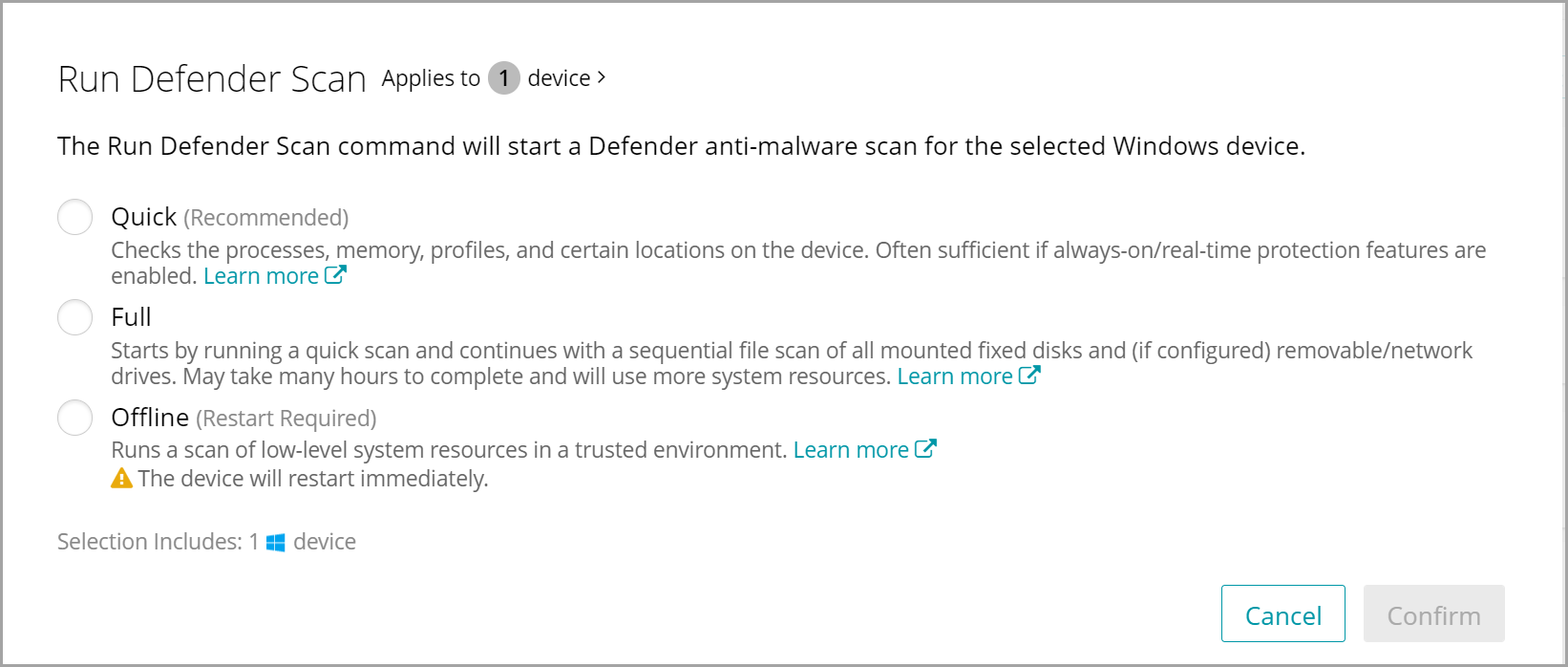
- In the Scan view, click Run Scan.
- In the Run Defender Scan view that appears, select the scan type and click Confirm.
- To update the signature file:
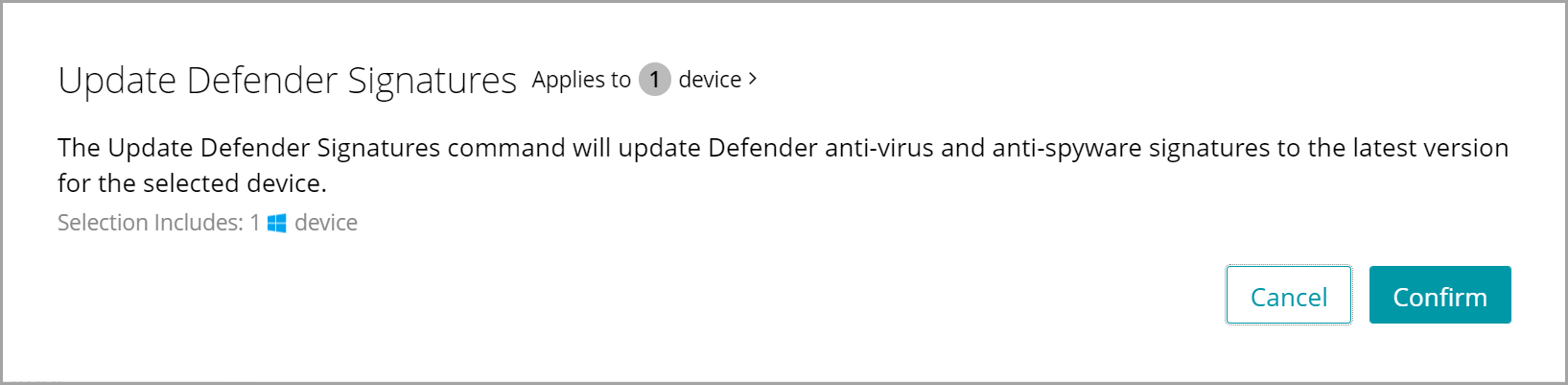
In the Signatures view, click Update.
In the Update Defender Signatures view that appears, click Confirm.